
Access recovery
What it is / when to use it
Access recovery… resets the forgotten password of an administrator — usually your own owner account — at the computer the server runs on. There is no "forgot password" email: no company holds your account, so the computer itself is where the reset happens.
For an ordinary person it is better to send a sign-in link from Manage people…, so they choose the new password themselves — see Sign-in links.
How to use it
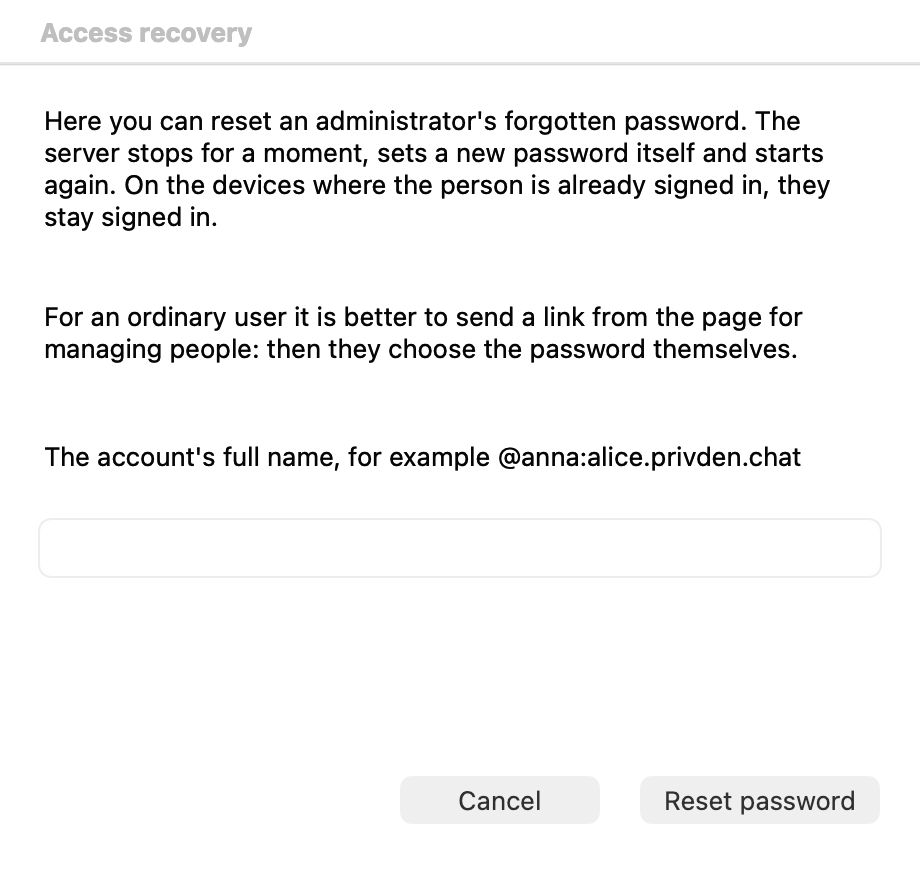
- Open the privden menu and choose Access recovery…. The window Access recovery opens.
- Type the account's full name, with its server — for example
@anna:smith.privden.chat. - Click Reset password. First the computer asks you to confirm that it is you, with a password or a PIN. Only the owner of this computer can reset a password.
- The server stops for a moment, sets a new password itself and starts again. This can take a couple of minutes — do not close the window.
- The window New password shows the new password. It is shown only now — copy it before you close the window.
- Sign in with it, and change it in Element right away: Settings → Account.
On the devices where the person is already signed in, nothing changes — they stay signed in.
If the reset cannot be done, the window says why and that the password has not been changed — for example when the server isn't running (start it: privden menu → Start Server), when the name has no account on this server, or when there have been too many attempts to sign in to the account recently.
A support person can open the same windows from a command prompt — see Command line.
Commands & settings
| Command | How to run |
|---|---|
| Access recovery… | privden menu → Access recovery… |