
Getting started
Setting up takes about fifteen minutes. You need a computer that stays switched on and plugged in, an email address, and a phone to test with at the end.
Pick the right computer. Whichever computer you choose becomes the server, so it should be one that is normally on and normally at home — a desktop rather than a laptop you carry around. It does not need to be powerful. privden keeps it awake only while it is on mains power (see Running the server).
Use an email address you expect to keep. It confirms that the server name you pick is yours, and it is how you get that name back if you ever install privden again or move it to another computer.

Install
On Windows
- Download the installer,
privden-<version>-x86_64-setup.exe, from www.privden.com, and double-click it. - Windows may show a blue box saying "Windows protected your PC". It appears for every program that is not signed with a purchased certificate, and privden is not signed yet. If you got the file from privden directly, click More info, then Run anyway.
- Choose your language — English, French, Spanish, Russian or Hungarian. This sets the language of privden itself, not of your messages.
- Keep the suggested install location, and choose whether you want a desktop shortcut.
privden installs and starts on its own.
On macOS
www.privden.com says how to get privden for macOS.
privden is installed into the Applications folder; it will not run from anywhere else. If you open it from another place, it says so: "privden has to be installed before it can run. Drag privden to your Applications folder, then open it from there."
After installation privden lives in the menu bar, next to the clock.
Choose your server name
privden opens a window titled Choose your server name.
The name becomes your permanent address on privden.chat: if you type smith, your server is smith.privden.chat from then on. Use lowercase letters a–z, digits and hyphens only — no spaces. Choose it as carefully as an email address: every account on your server carries it, and it cannot be changed later. privden checks the name as you type and says whether it is available, or suggests names to try if it is taken.
The name stays yours even if you uninstall privden. A name whose server has not been switched on for a long time is eventually released.
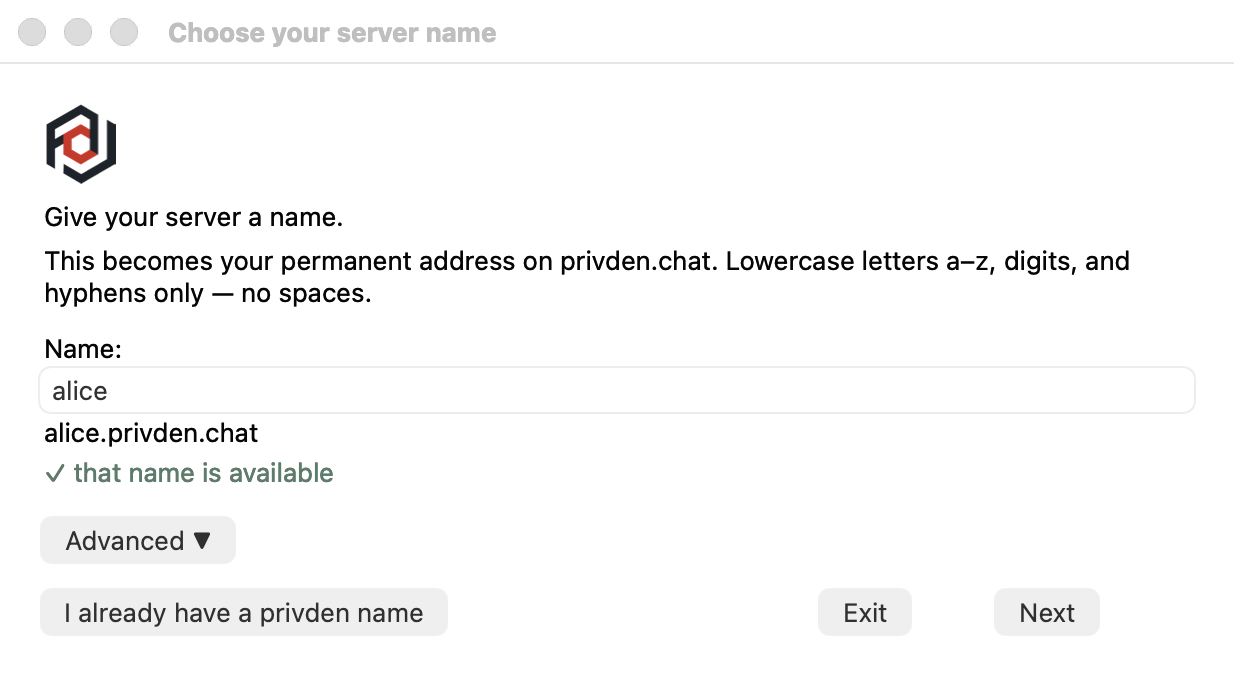
Screenshots show the macOS version of privden. On Windows the windows look different and work the same way.
Advanced. The Advanced section holds two settings that most people should leave alone:
- Port — which port on this computer privden listens at. Change it only if something else on the computer already uses port 8008. It cannot be changed later.
- Close access from the local network — leave it unticked. Ticked, phones and other devices can reach your server only through privden Connect. You can change this later from the privden menu (Access from the local network).
Click Next.
Already have a privden name? Click I already have a privden name to go straight to the email step — see Moving to another computer before you do.
Verify your email
Type your email address and click Send code. A six-digit code arrives within a minute — check the spam folder if it does not. Type the code and click Verify & reserve. This is what reserves the name: once it succeeds, the name is yours.
If privden cannot reach the name registry, it says Can't reach the registry. Check your internet connection and click Try again: setup cannot finish without a reserved name.
Create your owner account
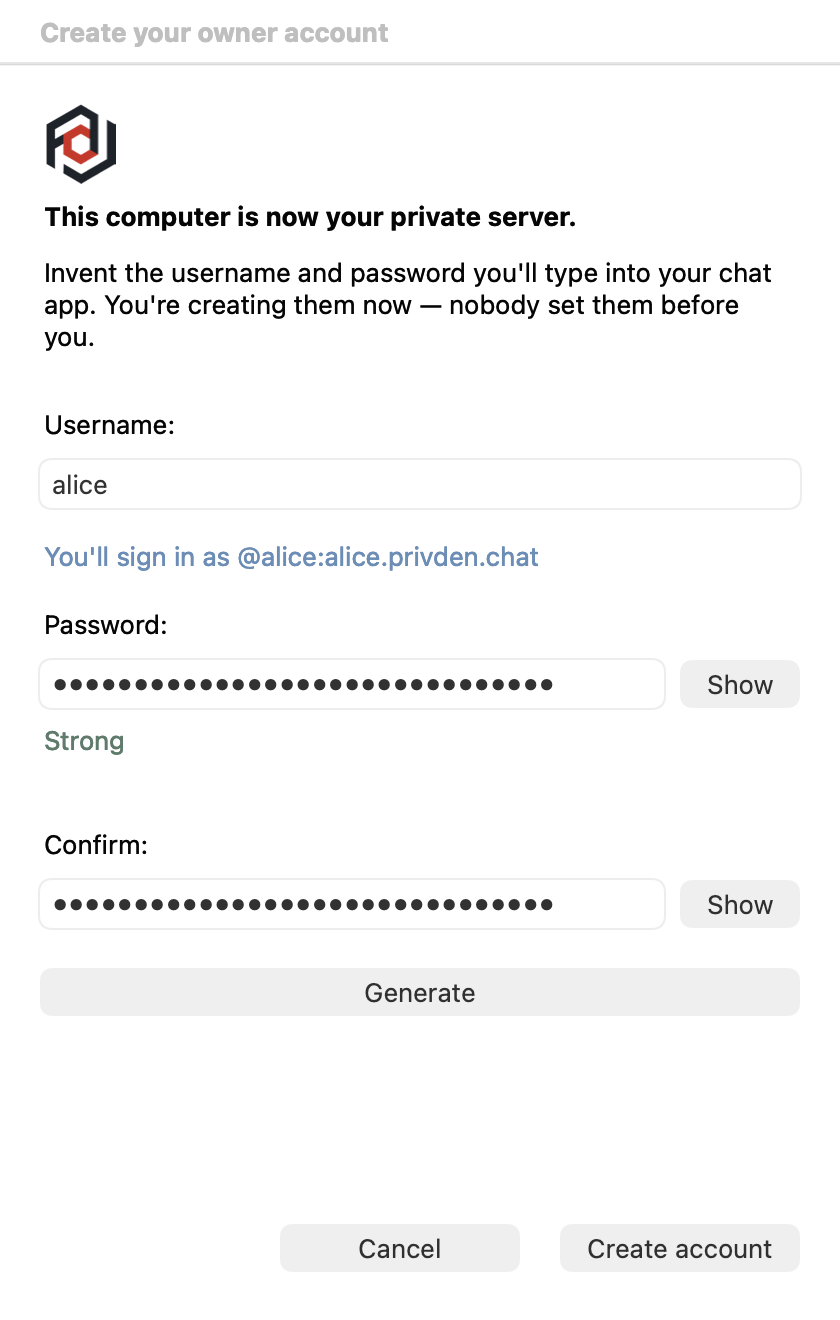
privden now says "This computer is now your private server." Invent the username and password you will type into your chat app. Nobody set them before you — they do not exist until you type them.
- Keep the username short and lowercase. As you type it, the window shows the full name you will sign in as, for example You'll sign in as @alice:alice.privden.chat.
- The password must be at least 12 characters, must not be the same as the username, and must not be one of the passwords everybody uses. A few ordinary words strung together work well, and Generate makes such a phrase for you. The line under the password says how strong it is.
- Type the password again under Confirm, then click Create account.
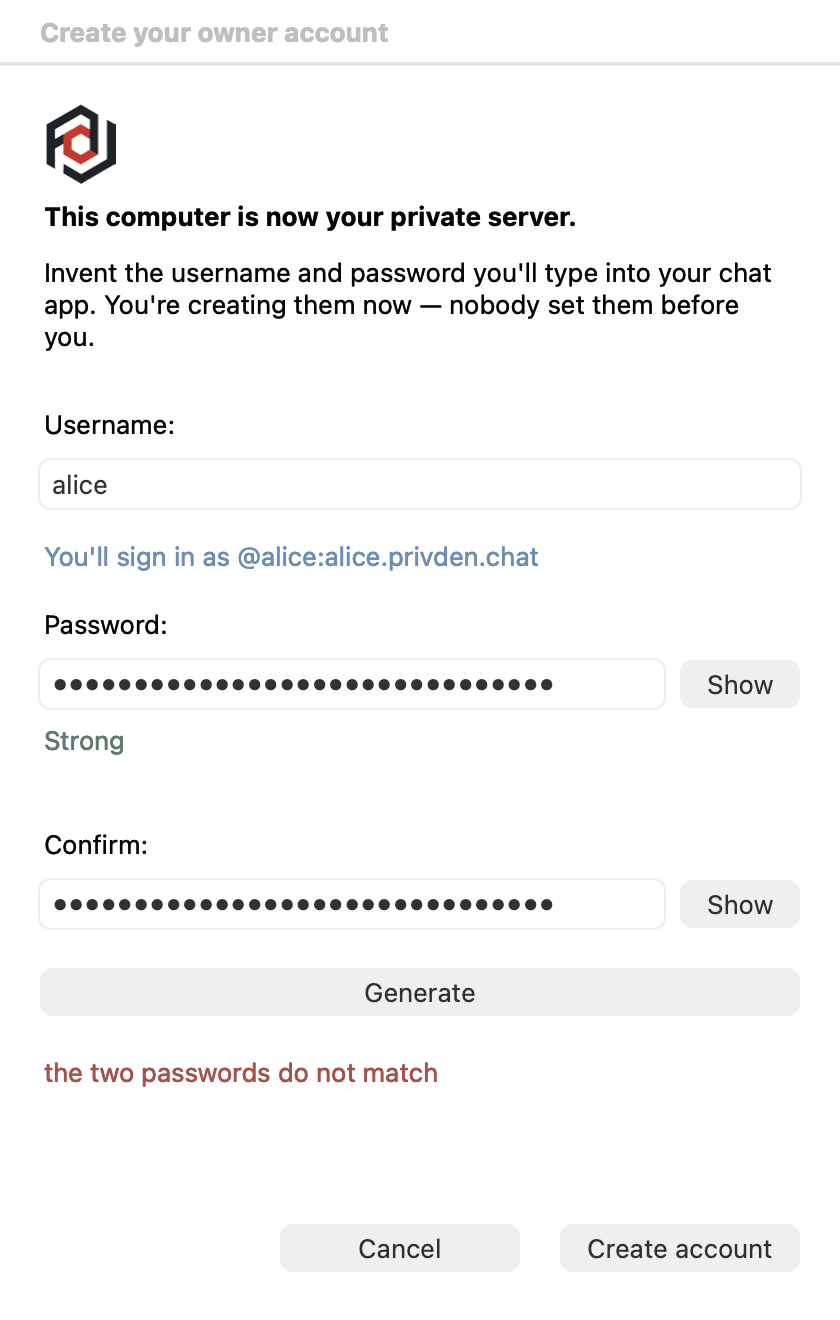
If something is not right, the window says so in red above the buttons and stays open, so you can correct it:
Write the password down somewhere safe. privden keeps no copy it could show you, and there is no "forgot password" email. If you ever forget it, it can be reset at this computer — see Access recovery.
Sign in from your phone
When the account is ready, privden shows Your owner account is ready, your username, and the address to sign in with. Leave that window open.
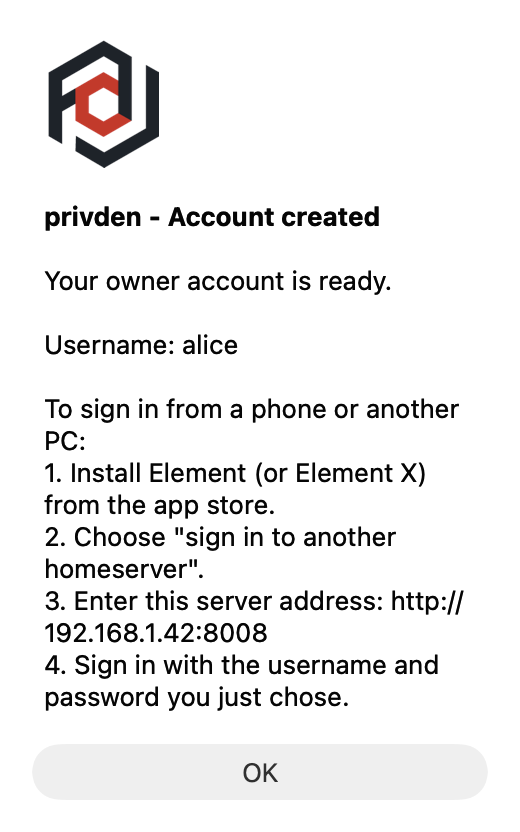
The address looks like http://192.168.1.42:8008; the numbers are your computer's. Type it exactly as shown, including http:// at the front and :8008 at the end.
On your phone, on the same Wi-Fi as the server:
- Install Element (or Element X) from the app store.
- Choose sign in, not create account — privden servers are invitation-only.
- Choose sign in to another homeserver, and enter the address privden showed.
- Sign in with the username and password you just chose. Type the username on its own —
alice, not@alice:….
If your server is closed to the local network, privden says so instead: it can then be used only from this computer, until you open access from the local network or turn on privden Connect.
If the address does not work
A computer with more than one network connection — a VPN, or Wi-Fi and a cable at the same time — has several addresses, and privden shows the one it would use itself. Find the right one on the computer: on Windows, Settings → Network & internet → Wi-Fi (or Ethernet) → your network → IPv4 address; or run ipconfig and read the IPv4 Address line. Keep the http:// and the :8008 around it. The Settings window also lists the address to use from your network.
If the connection is refused on Windows, Windows Firewall may be blocking it. The command that allows it is shown in the Settings window.
"I already have my account..."
If you created your owner account before but setup did not finish — the privden icon says privden - setup incomplete — choose I already have my account... in the privden menu. privden finishes setup and tells you to sign in from your phone with the username and password you already created.
Next
Add the people you live with, and read Running the server to know what privden does when you are not looking.