
Sign-in links
What it is / when to use it
A sign-in link lets somebody who is not at your computer get into your server. You pick their username; they open the link on their phone and choose their own password, so you never learn it. The same kind of link also lets a person who forgot their password set a new one.
Sign-in links come with privden Connect: the link has to be reachable from wherever the person is. A link works while the server's computer is on.
How to use it
Make a link for a new person
- Open the privden menu and choose Add user... (or use Manage people… — see People on your server).
- Under How they get in, choose Send a link — or Both, to also set a password now.
- Type the username and choose how long the link works: 1 hour, 1 day or 1 week.
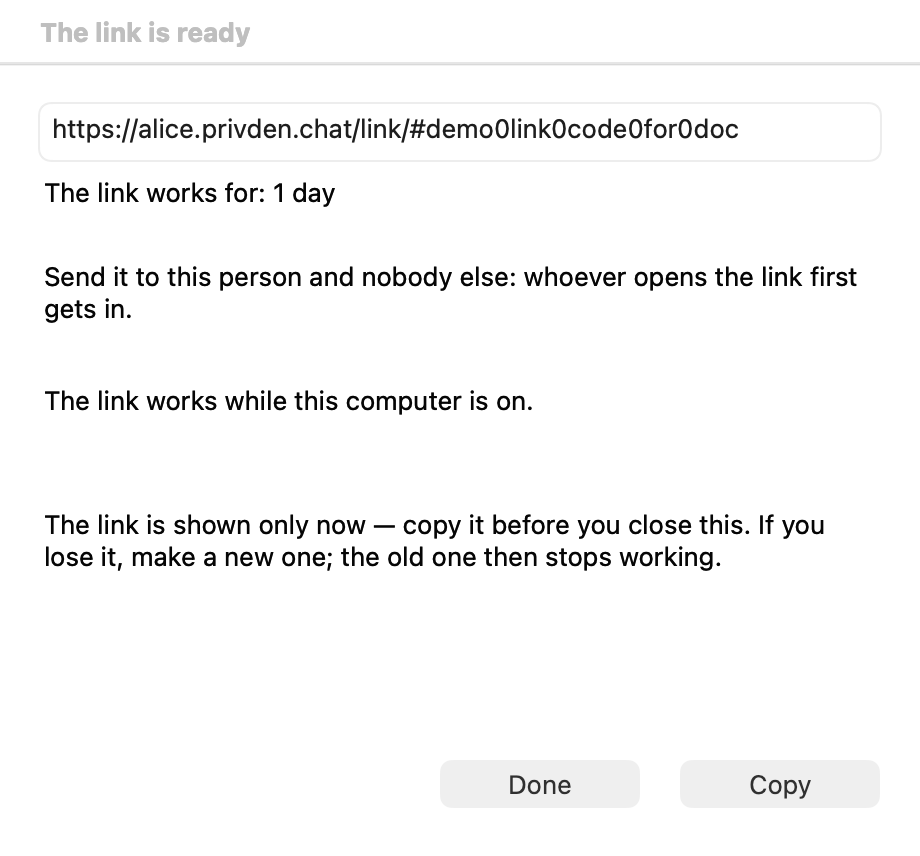
- Click Add this person. The window The link is ready shows the link. Click Copy and send it however you like — a message, a chat, read out over the phone.
The link is shown only once. Copy it before you close the window. If you lose it, make a new one; the old one then stops working. Send it to this person and nobody else: whoever opens the link first gets in.
What the other person sees
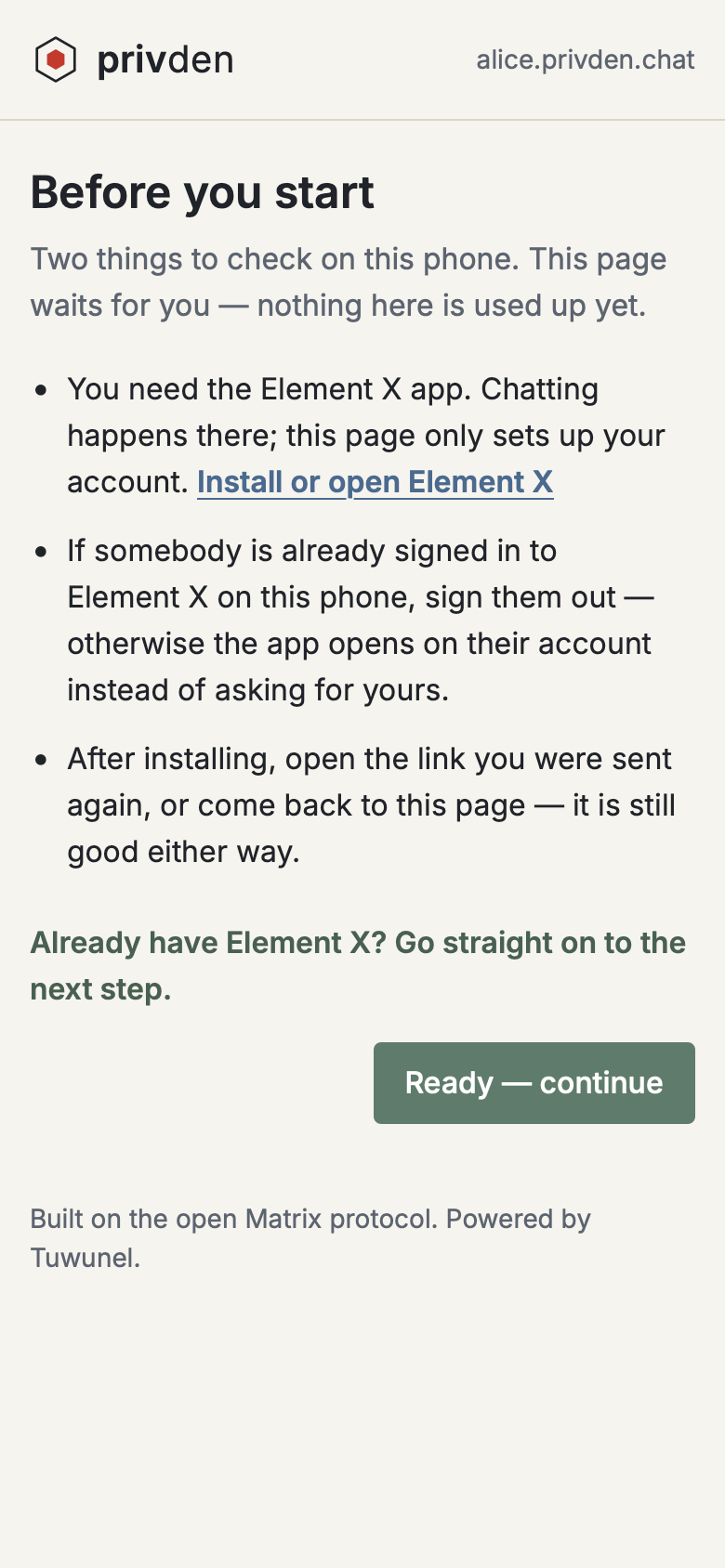
They should open the link on the phone they will chat from.
- Before you start — the page checks two things: that Element X is installed, and that nobody else is signed in to Element X on that phone (otherwise the app opens their account instead). Installing from here is safe: the link is not used up until a password is set.
- They choose their password, type it once more, and save it. The page shows their username and full name; they can tap to copy them.
- What next — the Open Element X button opens the app with your server and their username already filled in. On Android they type the username as well.
- Element X offers to save a recovery key. They should save it: without it, a new device cannot read earlier messages.
If the link cannot be used, the page says why: This link has already been used, This link was withdrawn, This link has expired, or This link does not work — and what to do, usually to ask you for a new one. If the server's computer is switched off, the page says the server did not answer, and the link still works later.
Reset a password with a link
- Open Manage people… and sign in.
- On the person's row, click Reset password. The page asks first: the current password stops working at once; devices where the person is already signed in stay signed in.
- Send them the link. They choose the new password themselves.
An administrator's password is not reset this way — it is changed only at the server's computer, with Access recovery. A switched-off account cannot have its password reset.
Keep track of links
The Sign-in links tab of Manage people… lists the links that are still waiting and those that ended in the last 30 days. The link itself is never shown again there. Withdraw stops a waiting link.

A link no longer works when, while it waited, the name was taken by someone else, the password was already changed, the account was switched off, or the account became an administrator.
Commands & settings
| Command | How to run |
|---|---|
| Send a link | privden menu → Add user... → How they get in → Send a link |
| Reset password | privden menu → Manage people… → the person's row → Reset password |
| Withdraw | privden menu → Manage people… → Sign-in links → Withdraw |