
People on your server
What it is / when to use it
Everyone who uses your server needs their own account. You, the owner, create them — nobody can sign up from a chat app on their own. There are three ways, and all three make the same kind of account:
- Add user... — the person is beside you, at the server's computer, and types their own password.
- A sign-in link — the person is somewhere else; they choose their password when they open the link. See Sign-in links.
- Manage people… — a page in your browser where you see everyone on the server, add a person with a password for them to start with, and switch off accounts that should no longer be used.
How to use it
Add someone who is with you
- Open the privden menu and choose Add user....
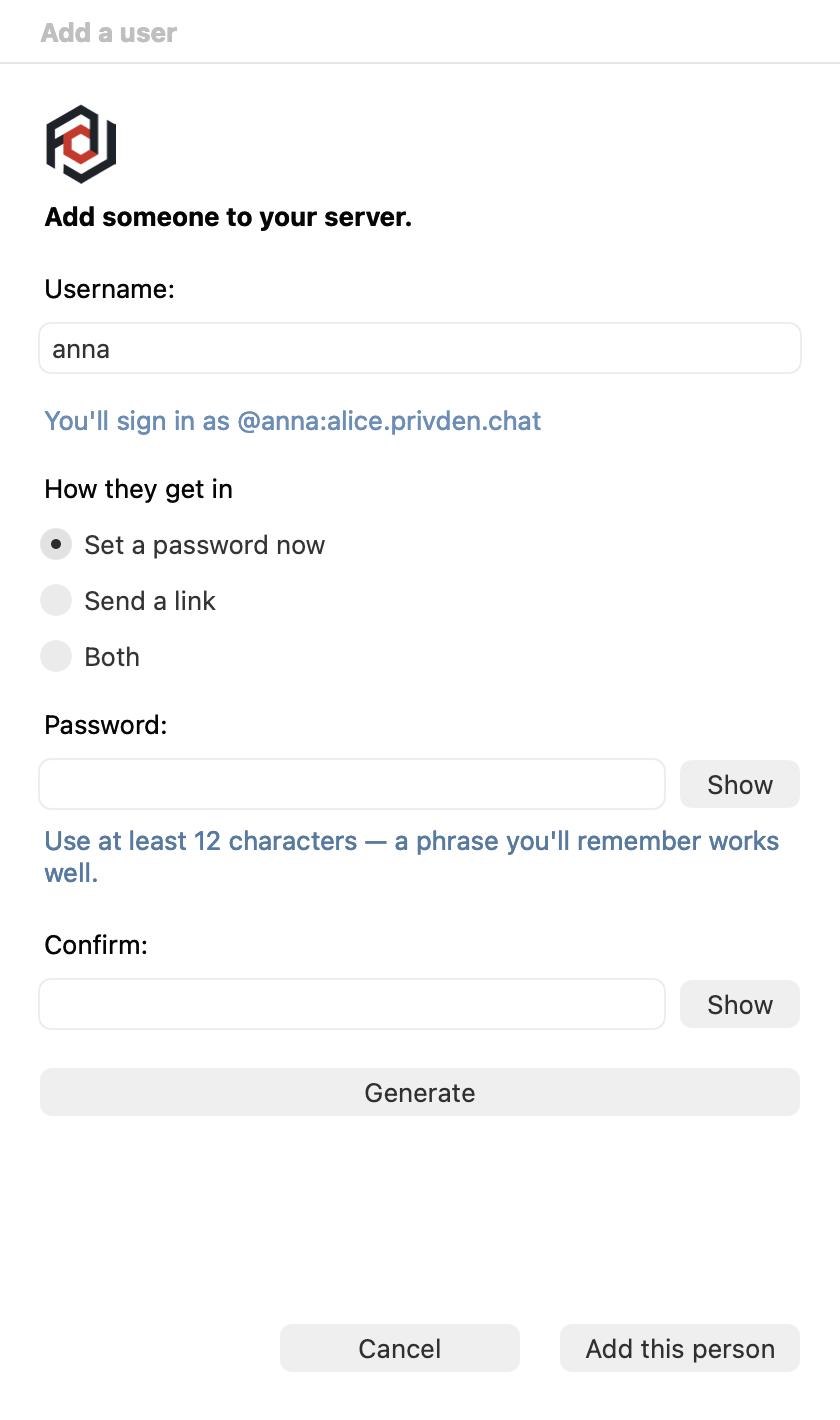
- The window Add a user opens: "Add someone to your server. Pick a username for them, then let them type their own password." Type their username.
- Let them type their own password twice, at your computer — that way it stays theirs and you never know it. The same password rules apply as for your own account: at least 12 characters.
- Click Create account. privden shows the account's username and how to sign in.
If privden says the server isn't running, start it first: privden menu → Start Server.
When privden Connect is switched on, the same window asks How they get in: Set a password now, Send a link, or Both. With Both, the password you set stops working as soon as the person uses the link and chooses their own.
Manage people in your browser
- Open the privden menu and choose Manage people…. A page opens in your browser.
- Sign in with your own privden account — the one you chat with. The page keeps nothing: close it and it forgets you.
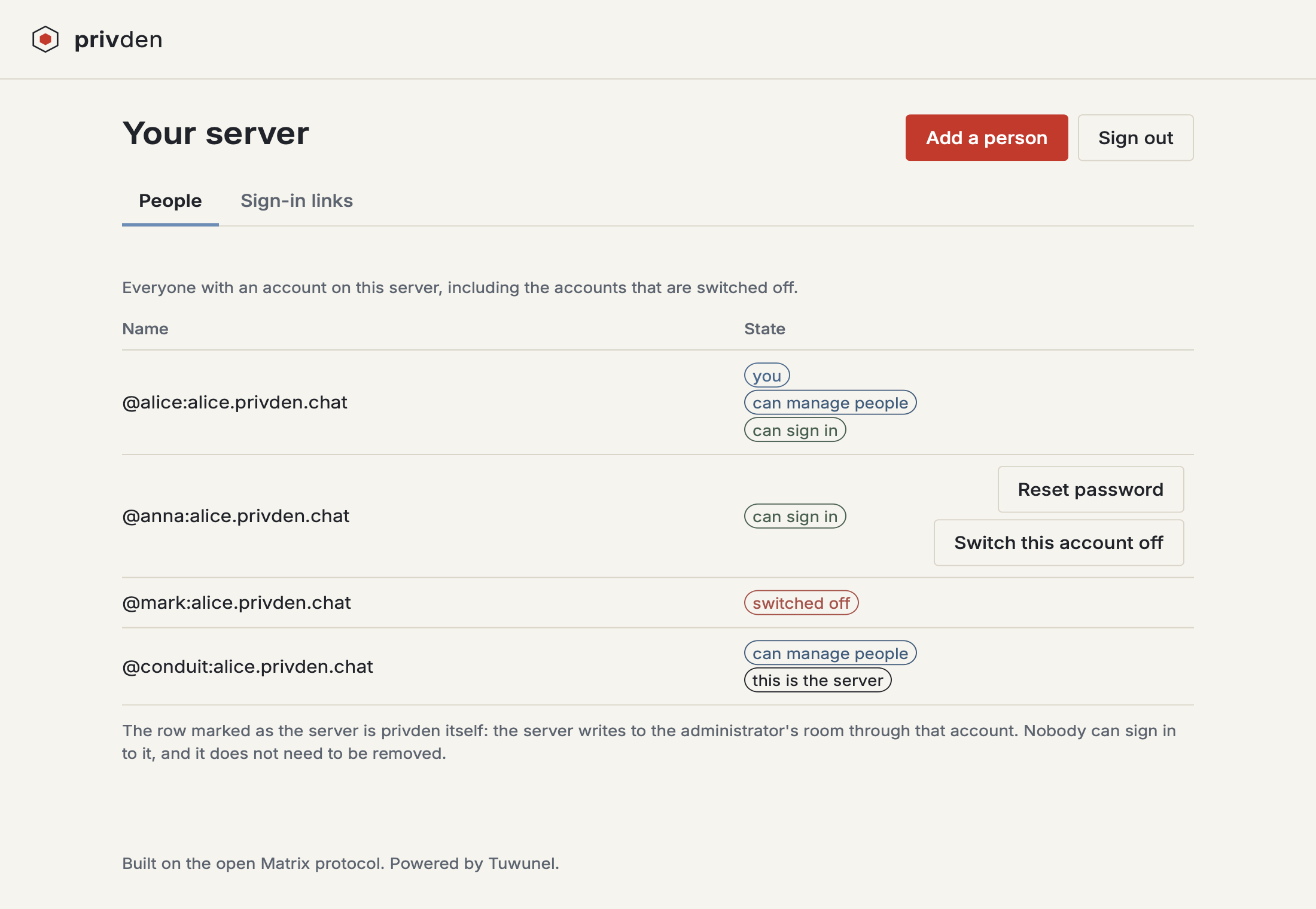
- The People tab lists everyone with an account on the server, including accounts that are switched off. Each row says whether the person can sign in, can manage people, or is switched off; your own row is marked you.
From the page you can:
- Add a person with a username and a password for them to start with. Tell them their name and that password, and they sign in from their own device.
- Switch an account off. The page asks first. This is final: the person cannot sign in again on any device, they are removed from every conversation, and the name can never be used again — by anybody.
- Issue and withdraw sign-in links, and reset a person's password with a link — see Sign-in links.
If privden cannot open your browser, it shows the page's address so you can open it yourself.
One row is marked this is the server. It is privden itself — the account it uses to write to the administration room. Nobody can sign in to it, and it does not need to be removed.
The last administrator
The server's last administrator — usually your own account — cannot be switched off, not from the page, not from Element's own Deactivate account. A server with no administrator left could not be run by anybody.
When someone forgets their password
You do not have to switch the account off and start again:
- An ordinary person — reset their password from Manage people… with a sign-in link; they choose the new one themselves. See Sign-in links.
- An administrator, including you — this is done only at the computer the server runs on: see Access recovery.
Too many wrong passwords
After several wrong passwords, signing in is refused for a while. This protects the accounts from somebody guessing. After a few mistakes the wait is a few seconds; an account that fails many times in a row waits about five minutes, even with the right password. Nothing is locked for good, and devices that are already signed in keep working.
Commands & settings
| Command | How to run |
|---|---|
| Add user... | privden menu → Add user... |
| Manage people… | privden menu → Manage people… |